
Website blocker and parental control for Chrome
Block sites and turn down the noise online.
WebSilence is a website blocker for Chrome that stops the sites and words that pull you away. Use it to stay focused at work or school, or to keep your child's browsing safe. Setup takes about a minute.
Works in Chrome on Windows, Mac, Linux and ChromeOS.
- people block with WebSilence
- 3,000+
- languages in the app
- 51
- pages you visit sent anywhere
- 0
Features
Everything that distracts, one switch away
Block a site, a part of a site or a word. Decide when the block applies. Keep the same rules on every computer.
-
Block sites
Block the site you're on with one click, or a whole list. Block an entire site like youtube.com or just one part, like youtube.com/@channel.
-
Block keywords
Any page whose address or text contains one of your words is replaced with a block page.
-
Block on a schedule
Block sites during work or school hours only, or open a site just for a break. Tabs that are already open are blocked when the time comes.
-
Age levels and categories
Pick a ready-made level for your child's age, or switch on categories one by one: social media, video, games, AI chatbots, shopping and more.
-
Add from history
See the sites you actually visit and block any of them with one click.
-
Same rules everywhere
Sign in and your lists, schedules and levels follow you to every computer, and come back after a reinstall.
One click
The site you're on, blocked before you finish the thought.
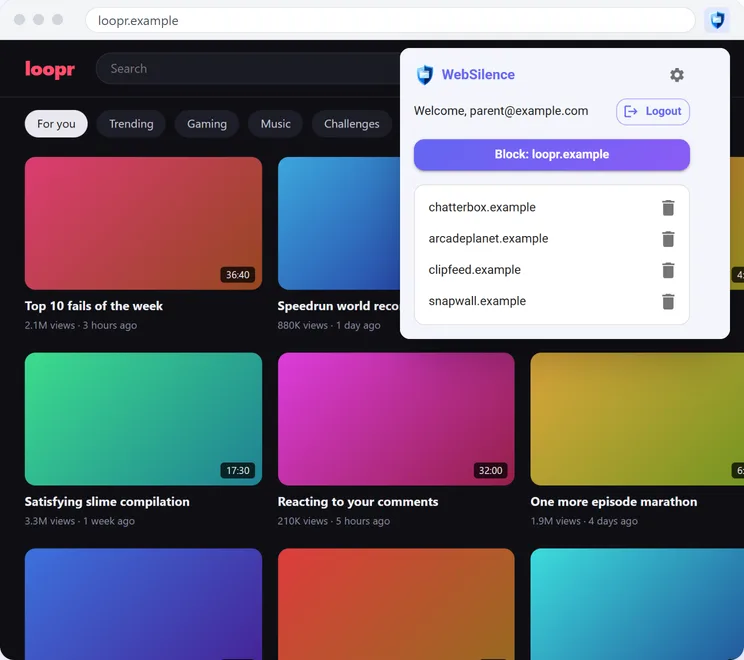
Click the WebSilence button and the site is gone: the tab you're on switches to a calm block page right away, so there's no last scroll.
- Whole sites or single sections
- Keywords in the address or on the page
- An allow list for the sites you need
Schedules
Block by day and time, not all day long.
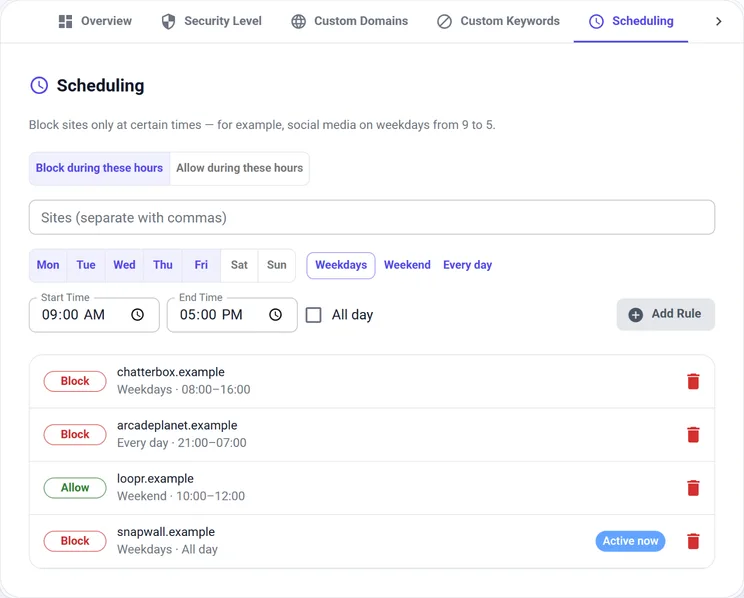
Set a rule once and WebSilence keeps to it. Block social media from Monday to Friday, 09:00 to 17:00, or allow it only from 18:00 to 19:00.
- Weekdays, weekends or any days you pick
- All-day blocks or time windows
- Break windows that open a site for a while
For parents
Ready-made protection for every age
Choose your child's age and WebSilence blocks what isn't right for it. Adult pages are recognised by their address, title and wording, so news, Wikipedia and help pages stay open.
Everything in Pre-Teen, plus video sites and games.
- Video sites
- Games
- Also blocks everything in Pre-Teen
Everything in Teenager, plus the apps that pull younger children in.
- Social media
- Messaging and chat apps
- Anonymous Q&A
- AI companion apps
- Live streaming
- Also blocks everything in Teenager
Blocks the parts of the internet no teenager needs.
- Adult content
- Gambling and betting
- Dating sites
- Video chat with strangers
- Gore and extreme forums
- Proxies used to get around blocks
Or switch on categories one by one
Twelve categories, each a single switch. Any site a level or category blocks can still be allowed.
- Adult content
- Gambling and betting
- Dating sites
- Video chat with strangers
- Gore and extreme forums
- Proxies and block bypass
- Social media
- Messaging and chat apps
- AI chatbots
- Video and streaming
- Games
- Shopping
Parental controls
Controls that stay on when you're not looking
A PIN only you know keeps the settings closed. On Windows, WebSilence can be made impossible to remove.
-
Parental PIN
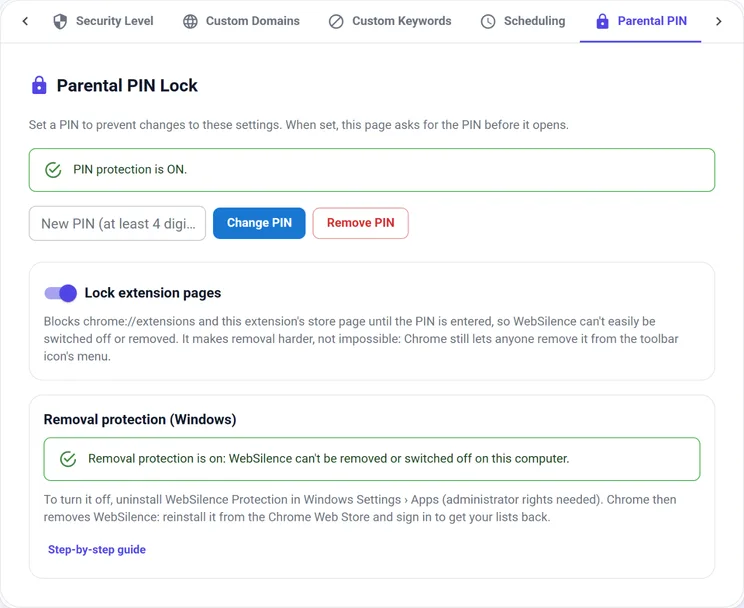
Locks the settings so lists, levels and schedules can't be changed without you.
-
Locked extension pages
Lock the browser's extension page too, so WebSilence can't be switched off there.
-
Forgot the PIN?
Sign in with the account that set it and the PIN is reset. No support ticket, no waiting.
-
Windows protection
An optional setup file uses Chrome's own policy so WebSilence can't be removed, and can turn off Incognito and guest mode.
Setup
Ready in about a minute
A short guide opens when you install WebSilence and walks you through it.
-
1
Add to Chrome
Install WebSilence from the Chrome Web Store.
-
2
Create your account
An email and a password keep your lists safe and let you reset a forgotten PIN.
-
3
Set a parental PIN
Choose a PIN your child doesn't know. Skip this step if WebSilence is just for you.
-
4
Choose the protection
Pick an age level, lock the extension pages and, on Windows, add removal protection.
You can use WebSilence for three days without an account. After that, the popup and settings ask you to sign in; blocking keeps working either way.
Privacy
Your browsing stays on your computer
WebSilence decides what to block on your own device. It doesn't record the pages you visit and doesn't send them anywhere.
Read the privacy policyNo browsing history collected
Blocking decisions are made locally, page by page.
Only your lists are synced
With an account, your block lists and settings are stored so they can follow you to other computers.
A count, not a profile
An anonymous install ID, the version number and the country tell us how many installs are active. Nothing else.
Questions
Before you install
More answers in the help centerHow do I block a site on Chrome?
Add WebSilence to Chrome, open the site, click the WebSilence button in the toolbar and choose Block. To block a site you're not on, add its address in Settings › Custom Domains. Blocked sites show a calm block page instead.
Is WebSilence a site blocker or a parental control?
Both. On your own, use it as a site blocker for distracting websites and keywords. For a child, add an age level, a parental PIN and, on Windows, removal protection.
Does WebSilence cost anything?
No. You can use it for three days without an account; after that, signing in with an email and a password is enough. There is no payment.
Can my child just turn it off?
A parental PIN locks the settings, and you can lock the browser's extension page as well so WebSilence can't be switched off there. On Windows, the optional protection setup makes WebSilence impossible to remove; your child needs a standard (non-administrator) Windows account for that.
Will it block Wikipedia or news because of a word?
No. Age levels look at a page's address and title, and only count explicit adult terms in the page text when several of them appear together. A single mention in an article doesn't block it.
Does it work in Incognito windows?
Chrome lets extensions run in Incognito only if you allow it. The Windows protection setup can turn Incognito windows off completely.
I forgot my PIN. What now?
On the lock screen, choose "Forgot PIN?" and sign in with the account that set the PIN. The PIN is removed and you can set a new one.
Which browsers does it work in?
Chrome on Windows, Mac, Linux and ChromeOS, and other browsers that install extensions from the Chrome Web Store.
Make the internet quieter today.
Add WebSilence to Chrome and set it up in about a minute.
Add to Chrome