
Parental controls
Parental controls that stay on
WebSilence lets you decide what your child can open in Chrome and keeps those rules in place. Here is how each part works, and what it doesn't do.
Start with the setup guide
It opens when you install WebSilence. Choose "My child" and it takes you through these steps.
-
1
Add to Chrome
Install WebSilence from the Chrome Web Store.
-
2
Create your account
An email and a password keep your lists safe and let you reset a forgotten PIN.
-
3
Set a parental PIN
Choose a PIN your child doesn't know. Skip this step if WebSilence is just for you.
-
4
Choose the protection
Pick an age level, lock the extension pages and, on Windows, add removal protection.
Choose what to block
Pick the level that matches your child's age, or turn on categories one by one. You can add your own sites and keywords on top.
Everything in Pre-Teen, plus video sites and games.
- Video sites
- Games
- Also blocks everything in Pre-Teen
Everything in Teenager, plus the apps that pull younger children in.
- Social media
- Messaging and chat apps
- Anonymous Q&A
- AI companion apps
- Live streaming
- Also blocks everything in Teenager
Blocks the parts of the internet no teenager needs.
- Adult content
- Gambling and betting
- Dating sites
- Video chat with strangers
- Gore and extreme forums
- Proxies used to get around blocks
Or switch on categories one by one
Twelve categories, each a single switch. Any site a level or category blocks can still be allowed.
- Adult content
- Gambling and betting
- Dating sites
- Video chat with strangers
- Gore and extreme forums
- Proxies and block bypass
- Social media
- Messaging and chat apps
- AI chatbots
- Video and streaming
- Games
- Shopping
The parental PIN
With a PIN, the settings ask for it before they open, so the lists, levels and schedules stay as you set them.
- At least four digits; pick one your child has never seen
- Linked to your account, so a forgotten PIN can be reset by signing in
- Unlocking the extension pages with the PIN opens them for ten minutes
Locked extension pages
Turn on Lock extension pages and chrome://extensions and WebSilence's store page show a lock screen until the PIN is entered. It makes switching WebSilence off much harder; Chrome still lets anyone remove an extension from the toolbar menu.
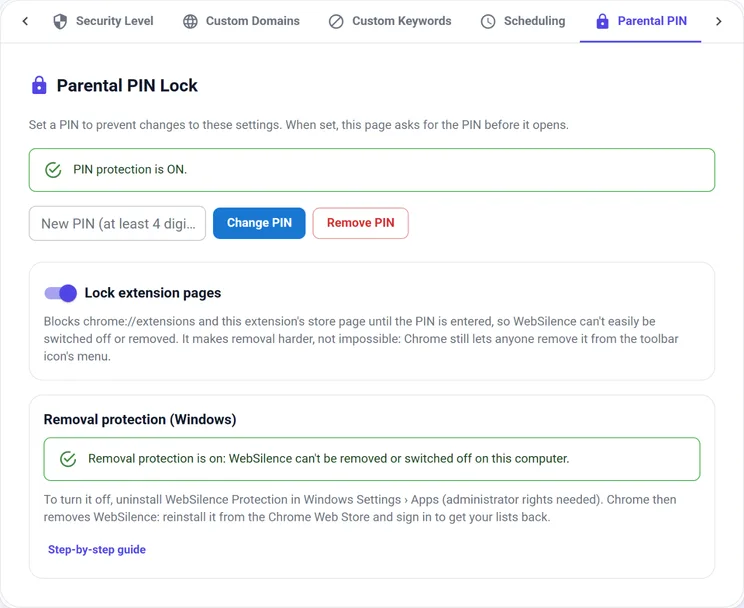
On Windows: impossible to remove
An optional setup file uses Chrome's own administrator policy, the same one schools use, so WebSilence can't be removed or switched off. It can also turn off Incognito windows, guest mode and new profiles.
How to set up Windows protectionWhat WebSilence doesn't do
- It doesn't record the pages your child visits or send them anywhere.
- It doesn't read messages, take screenshots or track location.
- It works in Chrome. Other browsers on the computer need their own settings.
- It doesn't run on phones or tablets.
Make the internet quieter today.
Add WebSilence to Chrome and set it up in about a minute.
Add to Chrome